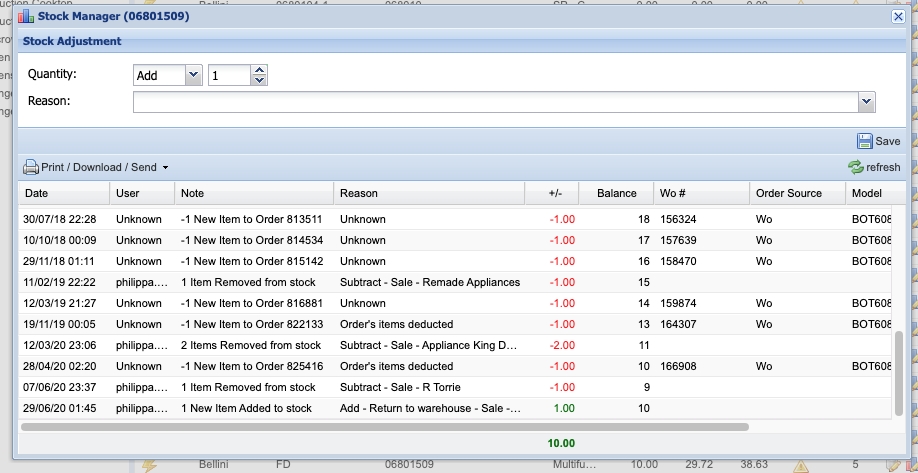
Adjusting Stock
Navigate to Supplier Catalog Section
- Using the main menu: Admin / Inventory
- Next to the supplier, click on the small blue Database Icon.
Open the Stock Manager
- Open the supplier you want to edit by clicking on the magnifying glass on the supplier's row.
- Select the Catalog Administration tab.
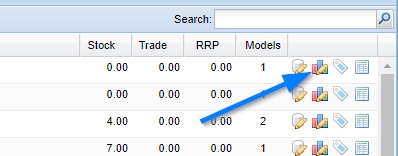
- Open the Stock Manager by clicking the Stock Manager icon
To Adjust Stock Levels Using the Stock Manager
- Select whether you want to Add or Subtract Stock
- Select the quantity you would like to adjust.
- Select one of the predefined reasons or write your own reason.
- Click the Save button