
Pending Order Requests
Navigate to the All Pending Order Requests Tab
- Navigate to the supplier section using the main menu: Admin / Inventory
- Next to the supplier, click on the small blue Book Icon
- Select the All Pending Order Requests tab
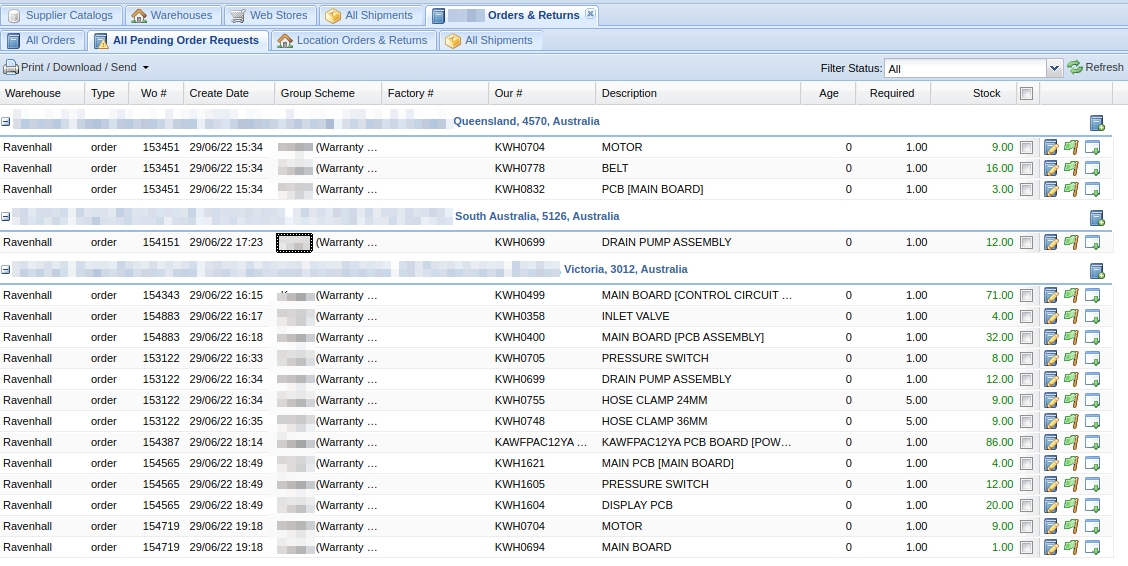
Creating an Order from Pending Requests
Method 1 - Select Individual Items
Check the items you wish to add to the order and click the Add selected items to order button at the bottom. This will move the selected items to the order.
Method 2 - All Items
Click the small Blue Book Plus icon on the destination group header. This will move all the group's items to the order.
New or Existing Order? If there is already an open order for the destination the items will be appended to the existing order otherwise a new order will be created.
Mark an Item as on Backorder
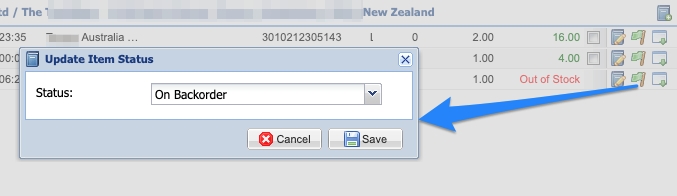
If the item is unavailable, you may mark it as on Backorder.
- Select the Flag Icon beside the item that you want to put on Backorder
- Select the Backorder status
- Click Save
Edit a Pending Request's Quantity
(No content provided for this section in the source material)